Disk array 13 readings
- Array state
- Array usage
- Free space
- Disks
- Processor temperature
- Processor load
- Memory used
- Read
- Write
- Network in
- Network out
- Array degraded
- Array almost full

App for Homey Pro
Watch over the disks before one of them gives up.
Available v1.2.0
The app reads your Ubiquiti UNAS on your local network: array state, RAID level, free space, processor load, memory, disk and network throughput, and for each disk its temperature, health score, running hours and lost sectors. Each disk becomes its own Homey device with its own history. Since the console keeps no past the app can read, the app keeps its own: a reading every five minutes over twenty-four hours, the fill level day by day over ninety days, and the last forty events. Enough to say, if the trend holds, how many days until the array is full.
View on the Homey App Store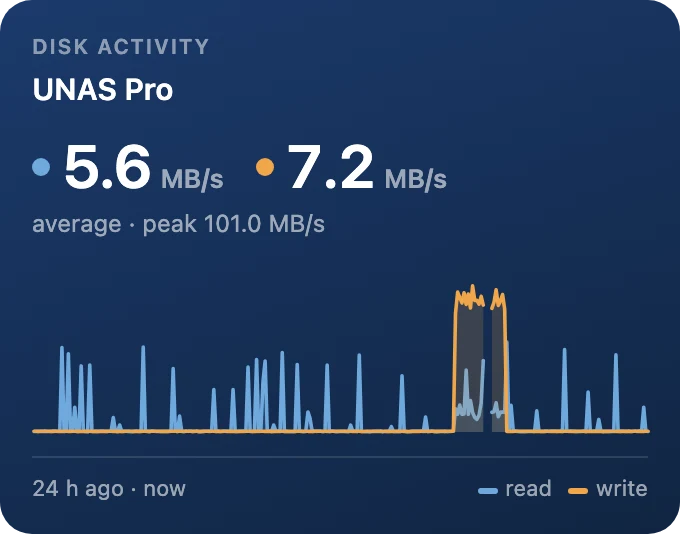
Average read and write throughput and their peak, as two curves over 6, 12 or 24 hours.
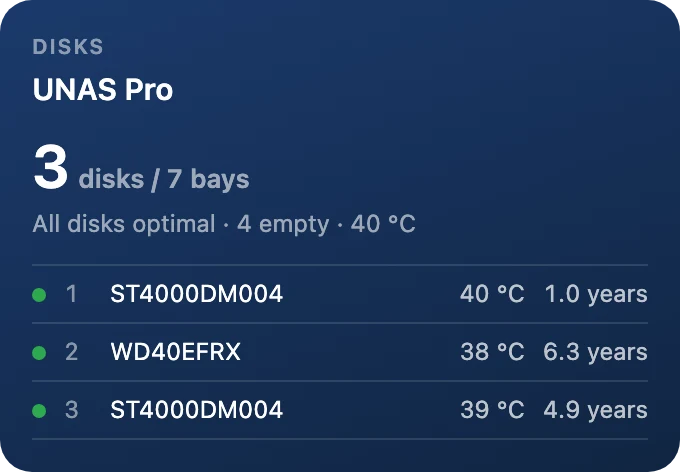
The number of disks out of the number of bays, then one row per disk: bay, model, temperature, and its age in years or its throughput while it works. A disk to watch turns amber.
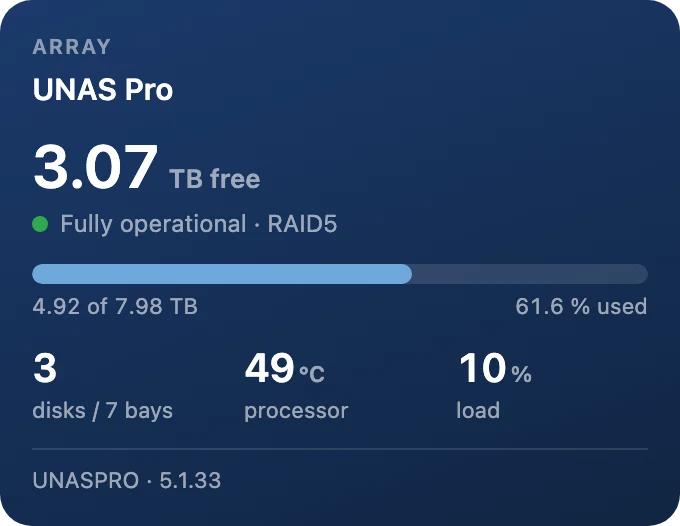
The free space in large type, the array state and its RAID level, a fill gauge, then disks, processor temperature and load; at the foot, the rebuild in progress if there is one.
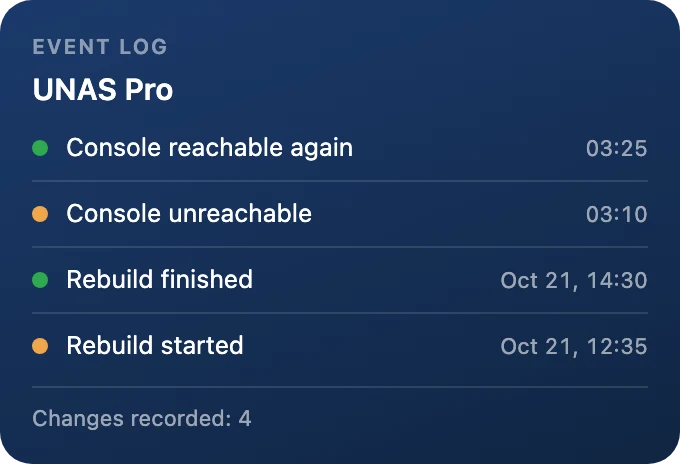
The last five events with their time: a change of state of the array or a disk, a rebuild, a disk added, removed or running hot, the console unreachable.
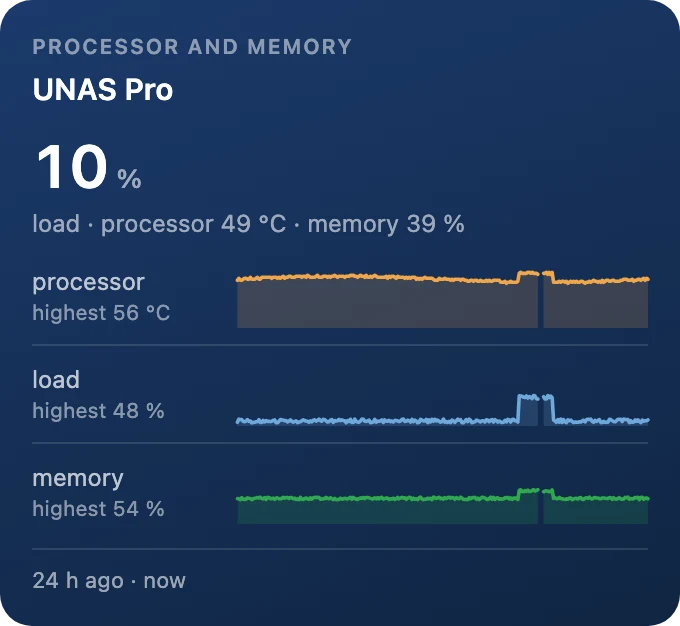
The processor load in large type, then three curves, its temperature, its load and the memory in use, each with its maximum.
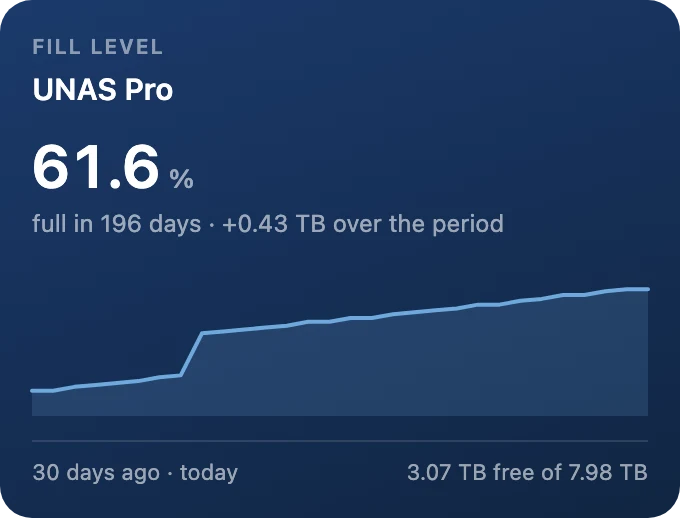
The array's fill level in large type and, if the trend holds, how many days until it is full, then its curve over 7, 30 or 90 days and the free space.
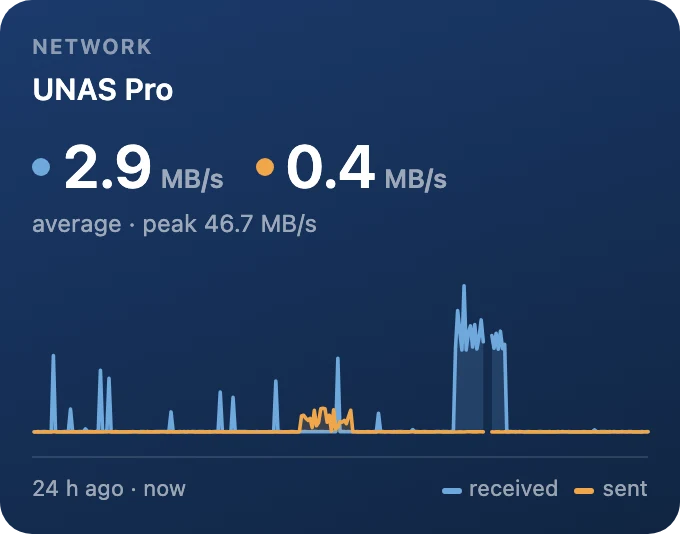
The console's average received and sent throughput and their peak, as two curves over 6, 12 or 24 hours.
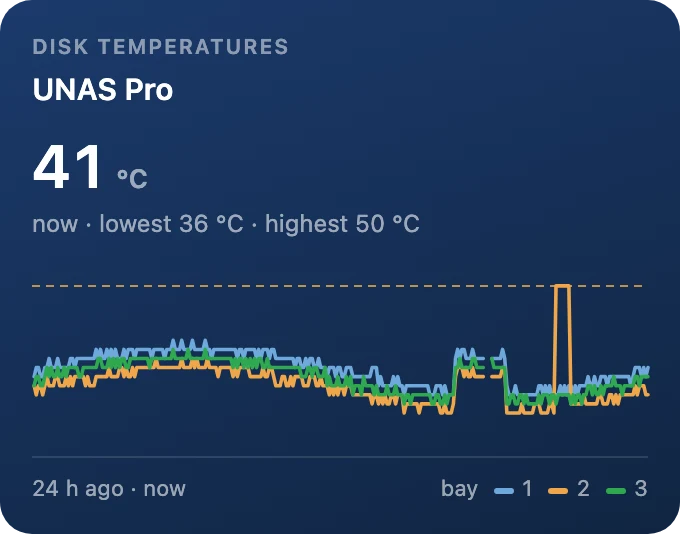
The temperature of the hottest disk, the period's minimum and maximum, and one curve per bay, with a marker at 50 °C.
Homey writes an automation in three parts: when something happens, and if a condition holds, then do this. Anything on a lighter background, such as radius, is a parameter you set in the Flow. Every condition also exists in its negative form, which Homey flips with one click.
When 6
And 4
UNAS Monitor 1.2.0 adds six dashboard widgets that show how your UNAS has been doing, not just how it is right now.
The console keeps no history that the app can read, so UNAS Monitor records it itself: a reading every 5 minutes over the last 24 hours, one point a day for 90 days of fill level, and the last 40 events. It is saved on your Homey and survives a restart.
Add a widget from the dashboard, pick your NAS in the Console list (leave it empty for the first one), then choose the period and one of five backgrounds. Right after the update, the curves need a few minutes of readings before they appear.